

Using Assume Role to create AWS CAPI Cluster
Pre-requisites for using Assume Role
For Assume Role to work you need two AWS Accounts:
Source Account: The AWS account that Cluster API Provider AWS uses to assume a role in a Target AWS Account.
Target Account: The AWS account into which the role is assumed and where the actual Cluster Resources such as VPC, EC2 Instances etc are created. Note that the target account can also be the same as the source account if needed for some use cases.
Steps:
Create the required CloudFormation Stack in both Source and TargetAccounts. Steps to create:
Download the CloudFormationStack template required by PMK.
Follow the AWS prescribed steps to create CloudFormation Stack using the above template: https://docs.aws.amazon.com/AWSCloudFormation/latest/UserGuide/cfn-console-create-stack.html. Name the CloudFormation Stack as
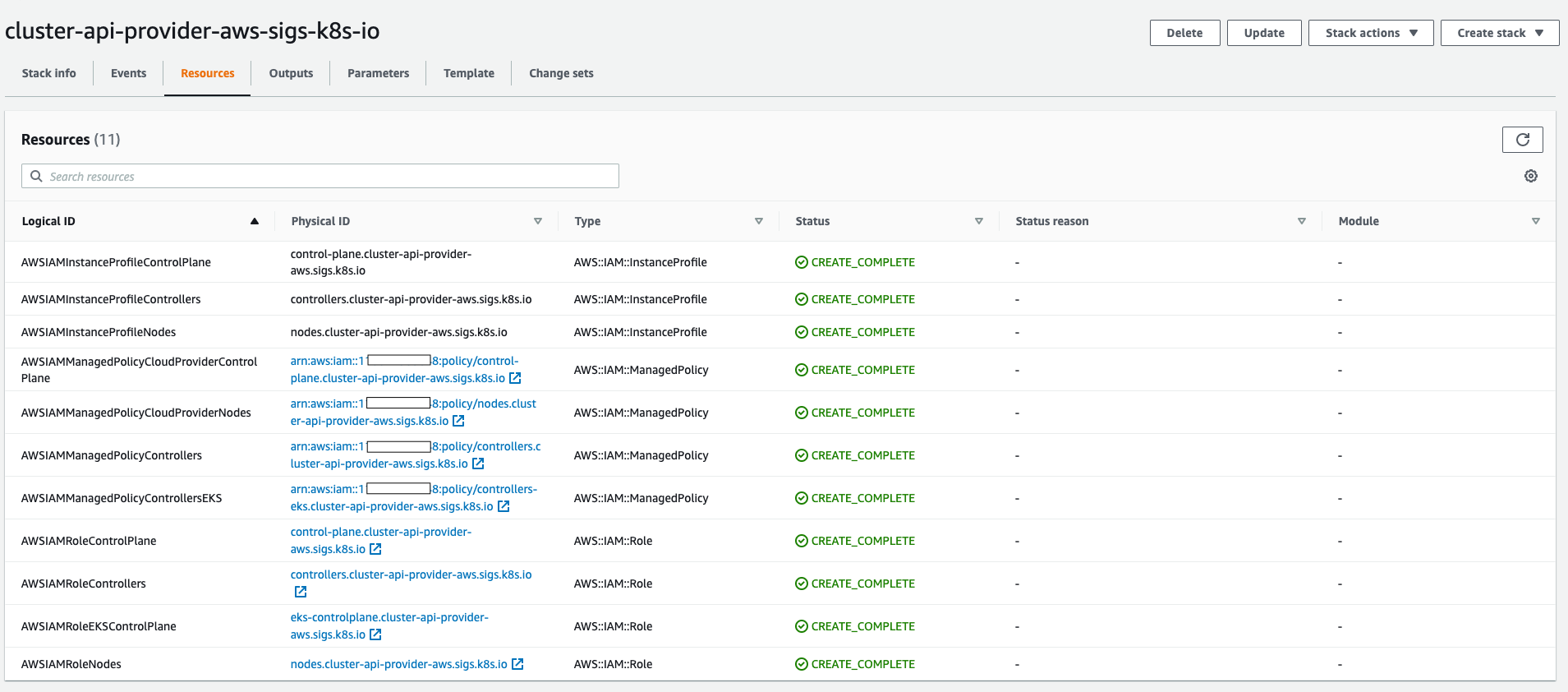
cluster-api-provider-aws-sigs-k8s-io.Once Created the stack should look like image shown below. All the IAM policies and roles required for CAPI clusters to work should get created.
Create an AWS Cloud Provider in PMK using the Source Account mentioned above.
Follow AWS Cloud Provider Management to create it.
The Source Account User should have IAM policy permissions that enable it to perform sts:AssumeRole operation.
Source Account user ARN would be like:
"arn:aws:iam::<Source Account>:user/sourceaccountuser".
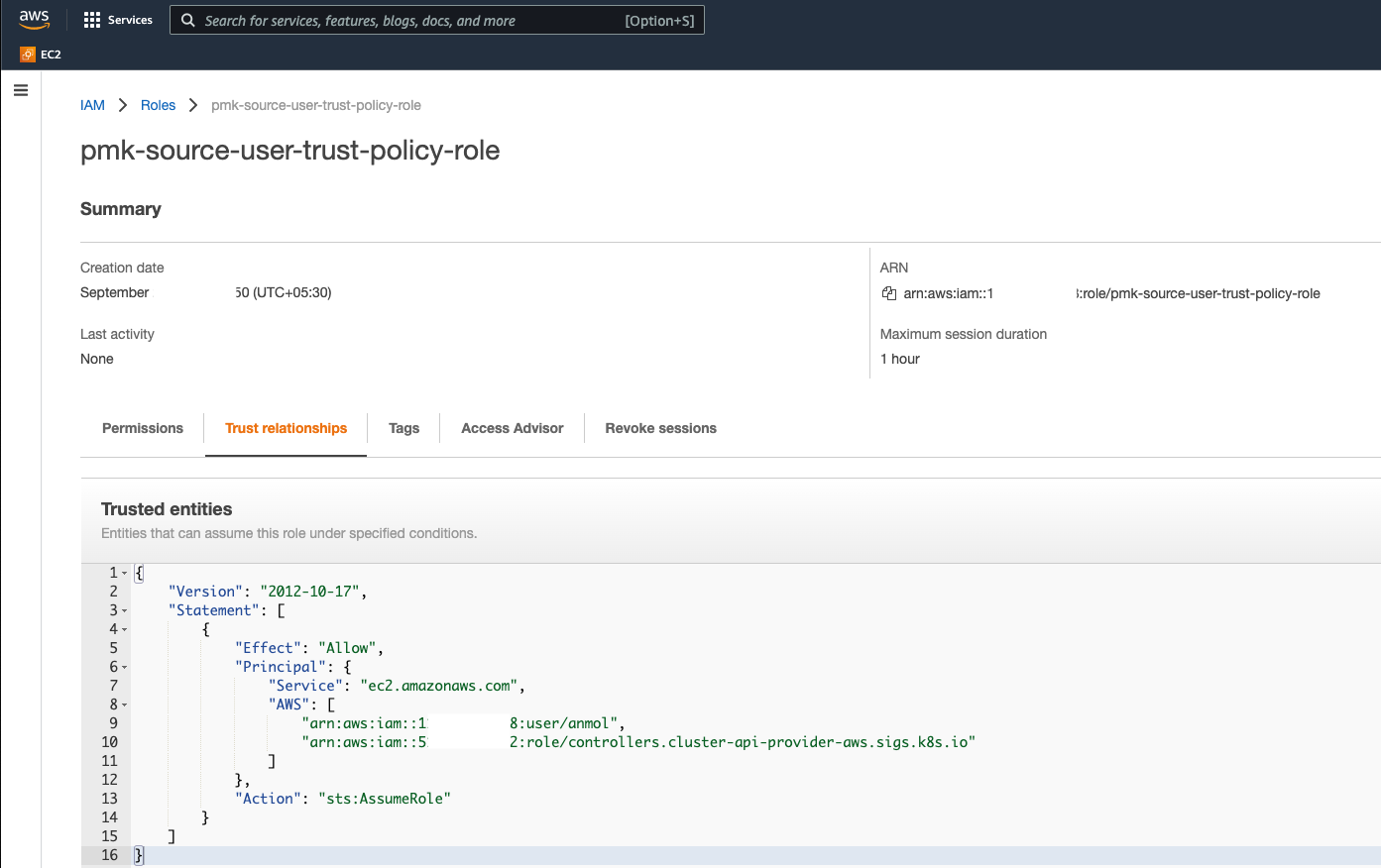
Create a AWS Role of type Custom Trust Policy in the Target Account to allow the source user to assume into it by setting a trust policy.
Note the role
"arn:aws:iam::<Source Account>:role/controllers.cluster-api-provider-aws.sigs.k8s.io"is created in the step 1 of creating the CloudFormation Stack in the Source Account.
Once created the the Target Role should look like:
Creating the Cluster
Using the resources created in pre-requisite steps, create the cluster.
Navigate to Infrastructure > Clusters
Click Add Cluster
Choose Amazon Web Services
Select New Generation AWS Cluster
Click Start Configuration
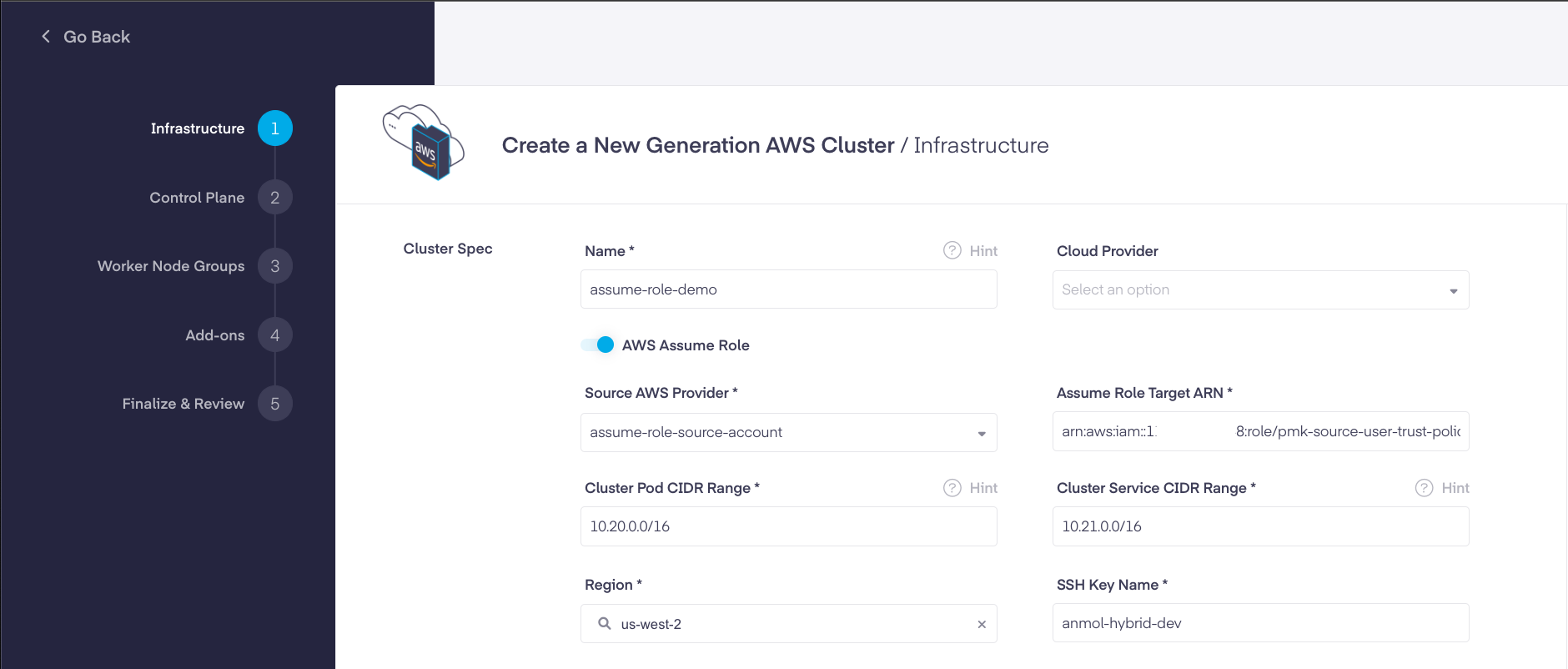
Enable the AWS Assume Role Toggle
Choose the already created Source Account Provider.
Enter the Target Role ARN
Example:
Go to Create an AWS Cluster for more details on further cluster creation steps.