
You are viewing documentation for a previous version of Platform9 products. For the latest Private Cloud Director documentation, click here.
Managed OpenStack
v5.10
×
Introduction
Getting Started
Infrastructure
Networks
Volumes and Snapshots
Images
Instances
Flavors
Tenant Administration
User Administration
Authentication & Authorization
Accessing VMs
Application Management
CLI Access
Monitoring & Alarms
Troubleshooting
Tutorials
Support
Regions
Title
Message
Create new category
What is the title of your new category?
Edit page index title
What is the title of the page index?
Edit category
What is the new title of your category?
Edit link
What is the new title and URL of your link?
Edit Volume Snapshot
Summarize Page
Copy Markdown
Open in ChatGPT
Open in Claude
You can edit the name, description, and metadata for a volume snapshot.
You must be a self-service user or an administrator to perform this operation.
To edit a volume snapshot, follow the steps given below.
1. Log in to Clarity.
2. Click Volumes and Snapshots in the left panel.
3. Click the Volume Snapshots tab.
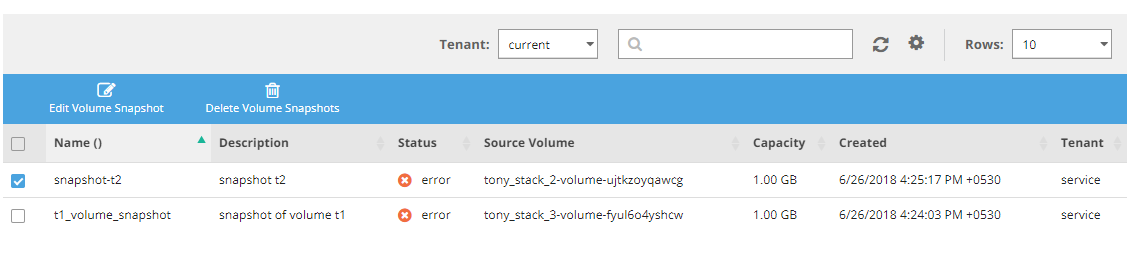
4. Select the checkbox for the volume snapshot to edit from the list of volume snapshots.
5. Make the required changes.
6. Click Save.
The changes are saved to the volume snapshot.
Type to search, ESC to discard
Last updated on
Was this page helpful?
Next to read:
Take Volume SnapshotDiscard Changes
Do you want to discard your current changes and overwrite with the template?
Archive Synced Block
Message
Create new Template
What is this template's title?
Delete Template
Message
