

Follow these steps to create a Kubernetes cluster using the Platform9 terraform provider.
What you’ll need
General understanding of Terraform
Access to the inbox of a valid email address
AWS account that meets the AWS Clusters (Legacy)
Log in to your Platform9 Account
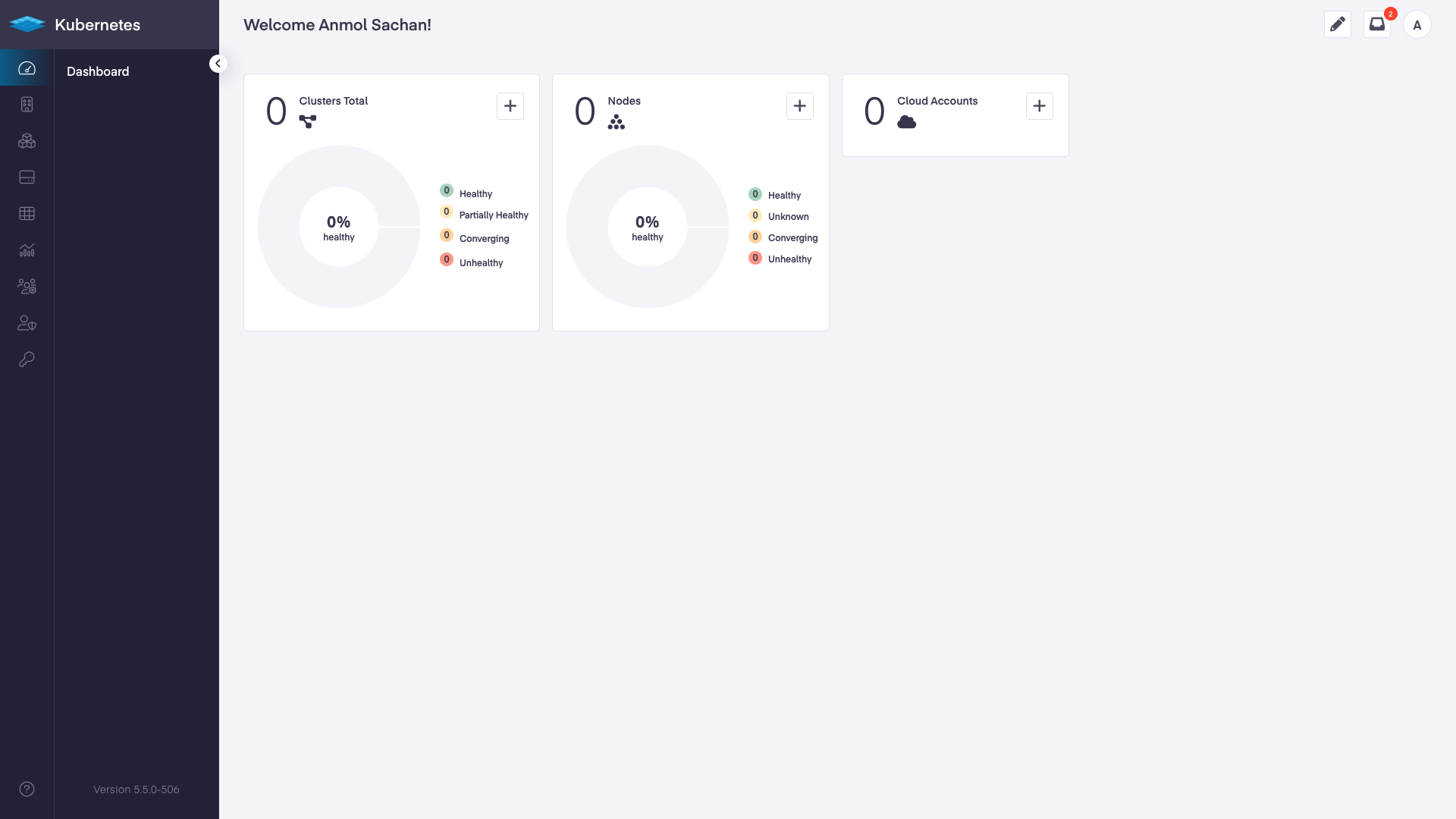
Log in to your Platform9 account. Once you sign in you’ll be directed to your account's dashboard. This is a summary of all Kubernetes clusters, nodes, pods, and cloud accounts associated with your Platform9 account. If this is a brand new account, there may not be anything associated… yet!
Create a terraform file
Create a file named p9-simple-cluster.tf and paste the below contents within that file.
In the “locals” area of the file fill in the relevant information:
p9_tenant_uuid | Your Platform9 project UUID. Learn how to find this value, here. |
aws_account_key | Your AWS account info. |
aws_account_secret | Your AWS account secret. |
aws_keypair_name | The name of a saved AWS keypair. |
Save the file and note its path
Create cloud provider and cluster using Terraform
Navigate to the directory where you saved the tf file, in your terminal
Run the following command using the terraform cli
Terraform will find the .tf file and initialize the directory for management of the provider.
Once initialized, start the Terraform pf9 provider with the following command
Terraform will run through validations of your values and begin creating the cloud provider and then the cluster.
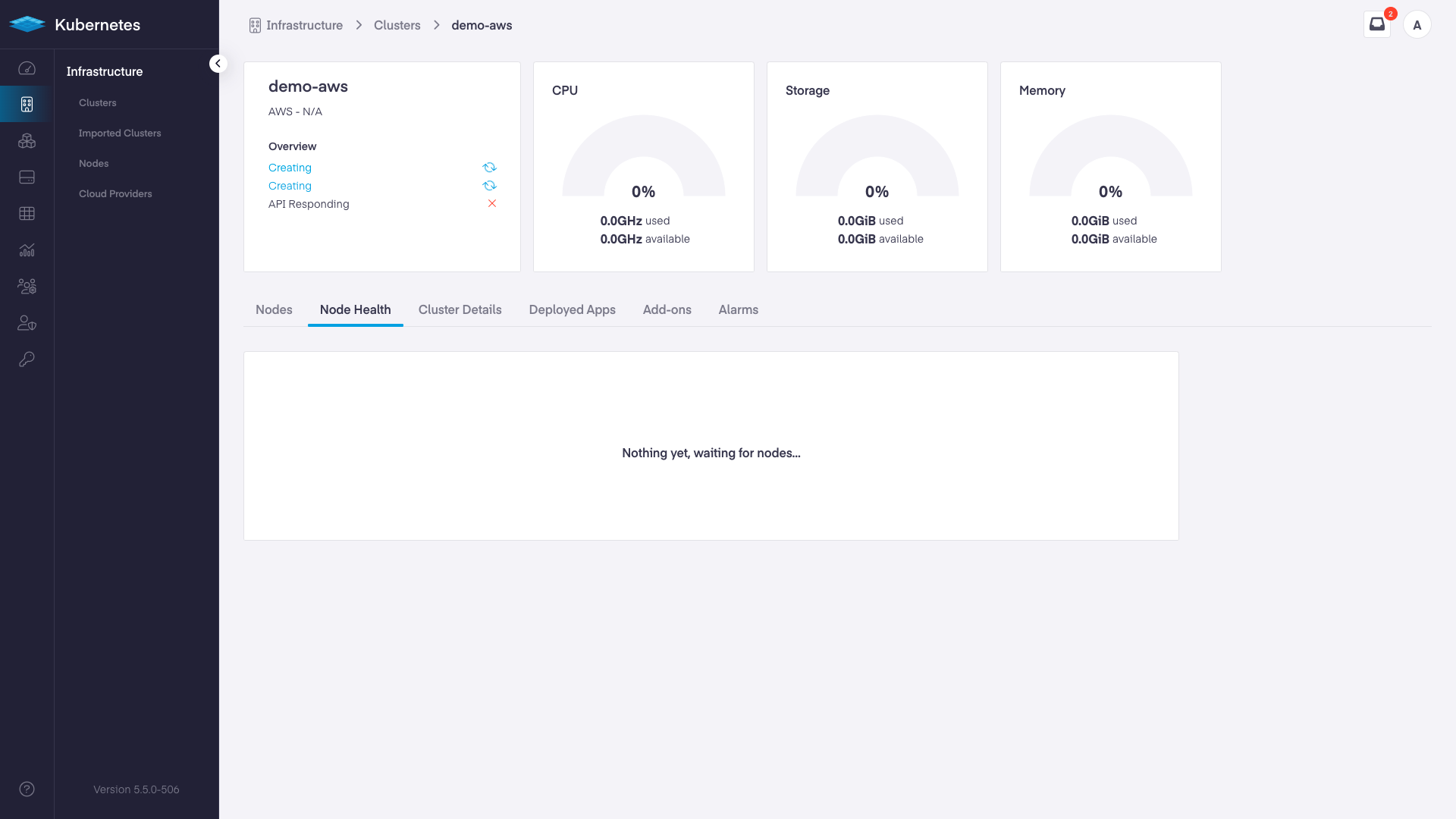
To follow the progress of your cluster creation go back to the Platform9 dashboard and navigate to “Infrastructure”, and then “Node Health”. Initially, the screen will be:
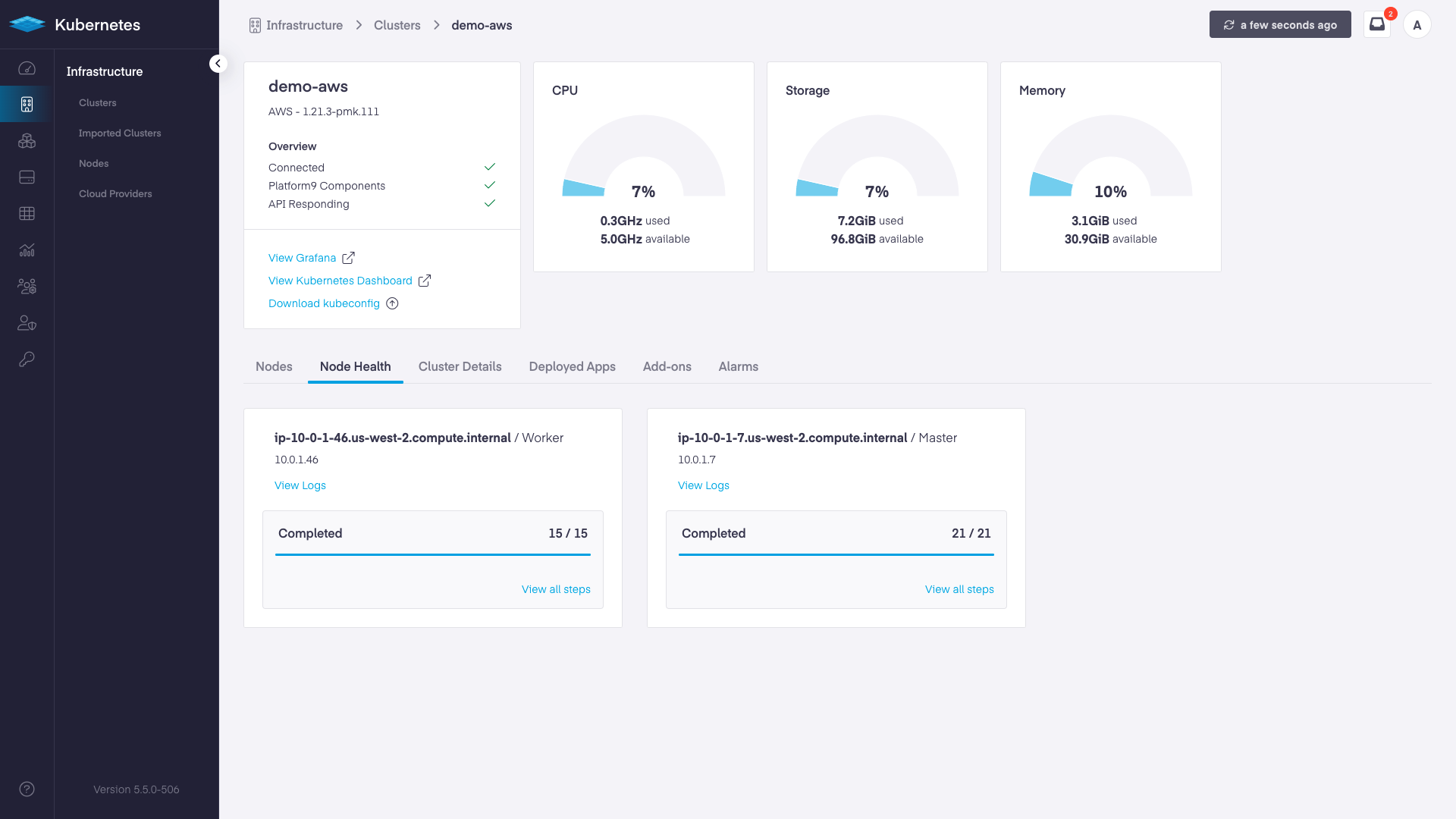
As the deployment progresses, the screen will update with steps completed and a final message of "Connected" and "Healthy".
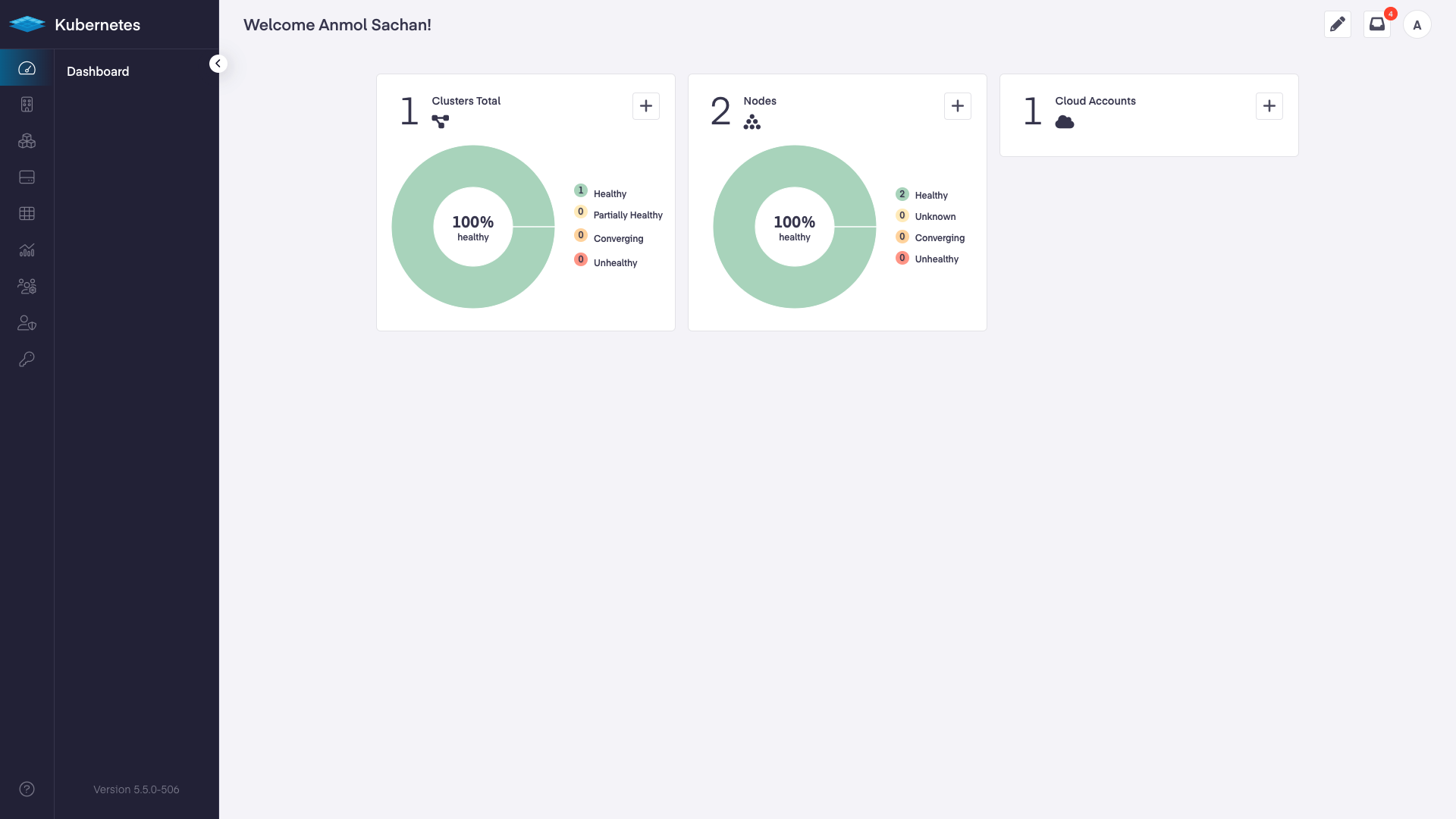
Navigate back to your dashboard to see a summary of the new management plane.
Removing the new cluster using Terraform
Using your terminal run the following command:
This will remove the cluster completely.