
Introduction
Getting Started
Infrastructure
Networks
Volumes and Snapshots
Images
Instances
Flavors
Tenant Administration
User Administration
Accessing VMs
CLI Access
Monitoring & Alarms
Troubleshooting
Tutorials
Support
Regions
Powered By

You can edit the information about an application in the Murano application catalog. You can edit the name, description, tags, and categories for the application. You can make the application public or private.
You must be a self-service user or an administrator to perform this operation.
To edit an application, follow the steps given below.
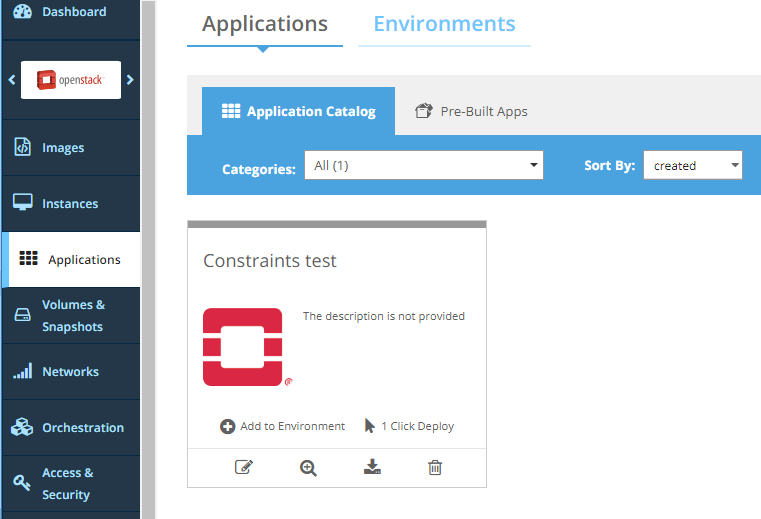
1. Click Applications in the left panel and then click Applications.
2. Click the Application Catalog tab.
3. Click the Edit Application icon seen on the application tile.
4. Edit one or more the following details as required.
| Field | Description |
|---|---|
| Name | The name of the application. |
| Description | The description of the application. |
| Tags | The image from which a virtual machine instance must be spawned for the application to run on |
| Categories | The flavor to use based on CPU and memory resources required |
5. Select the Public check box if you want to make the application public. This is an optional step. 6. Click Update Application.
The application is updated with the changes.
Was this page helpful?