
Introduction
Getting Started
Infrastructure
Networks
Volumes and Snapshots
Instances
Flavors
Tenant Administration
User Administration
Accessing VMs
Application Management
CLI Access
Monitoring & Alarms
Troubleshooting
Tutorials
Support
Regions
Powered By

This Tutorial describes steps required for setting up a vSphere Datastore as a backing for your OpenStack Glance Image Catalog in Platform9 Managed OpenStack.
Set Up OpenStack Glance:
- Enabling Glance datastore feature requires authorization of VMware gateway by specifying the datastore and appliance IP that should to be paired with Platform9 Glance.
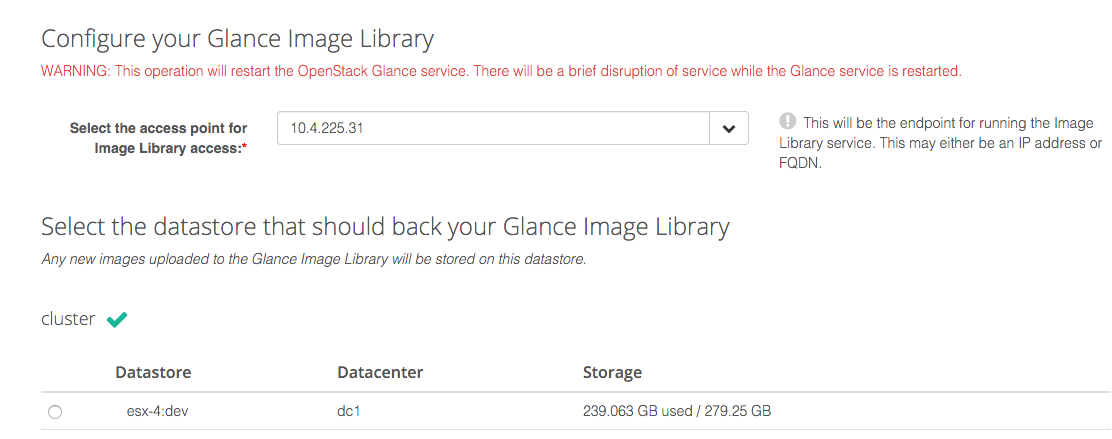
- Exactly one datastore can be paired with Platform9 Glance.
- Any glance commands must be executed from a machine that can access the gateway.
How it Works:
Once the initial setup is complete, all Glance operations will use the VMware datastore as the backend.
- Templates, however will be discovered based on the datastores paired with Nova.
- Image upload to the datastore is an HTTP PUT on the datastore directly and does not invoke any vCenter operation.
- Datastores paired with Nova Compute and Glance need not be the same.
- All glance images can be found at
/pf9/openstack_glancepath on the Glance datastore.
Using OpenStack Glance Command Line:
Glance command line client can be used to perform image operations to datastores. Below are few examples.
- Creating an image:
Two Platform9 specific properties need to be specified for the uploading the image, ie., pf9_virtual_size and pf9_description. pf9_virtual_size is the virtual size of the image and pf9_description is optional. Additionally, the property
vmware_ostypeshould be specified correctly, especially for Windows OSes. You can refer to the list of supported VMware OS types here. If you have more than one (1) region in your Platform9 deployment, you will also need to specify the region via the--os-region-nameparameter.
xxxxxxxxxxglance image-create \[--os-region-name <region name>] \--name cirros \--file /path/to/image/filename.vmdk \--container-format=bare \--disk-format=vmdk \--property vmware_disktype="preallocated" \--property vmware_adaptertype="ide" \--property pf9_virtual_size="40894464" \--property vmware_ostype="otherGuest64" \--property pf9_description="glance cmdline image upload"List Images:
xxxxxxxxxxglance image-delete <image-id>Display properties of an image:
xxxxxxxxxxglance image-delete <image-id>Delete image:
xxxxxxxxxxglance image-delete <image-id>Was this page helpful?