
Introduction
Getting Started
Infrastructure
Networks
Volumes and Snapshots
Images
Flavors
Tenant Administration
User Administration
Accessing VMs
Application Management
CLI Access
Monitoring & Alarms
Troubleshooting
Tutorials
Support
Regions
Powered By

You can stop an instance once you are done with using the instance, or in order to conserve compute resources. Once you stop the instance, it is not available for use.
You can start the instance at any time as and when you require it.
You must be a self-service user or an administrator to perform this operation.
To stop an instance, follow the steps given below.
1. Log in to Clarity.
2. Click Instances in the left panel.
3. Select the checkbox for the running or active instance that you want to stop.
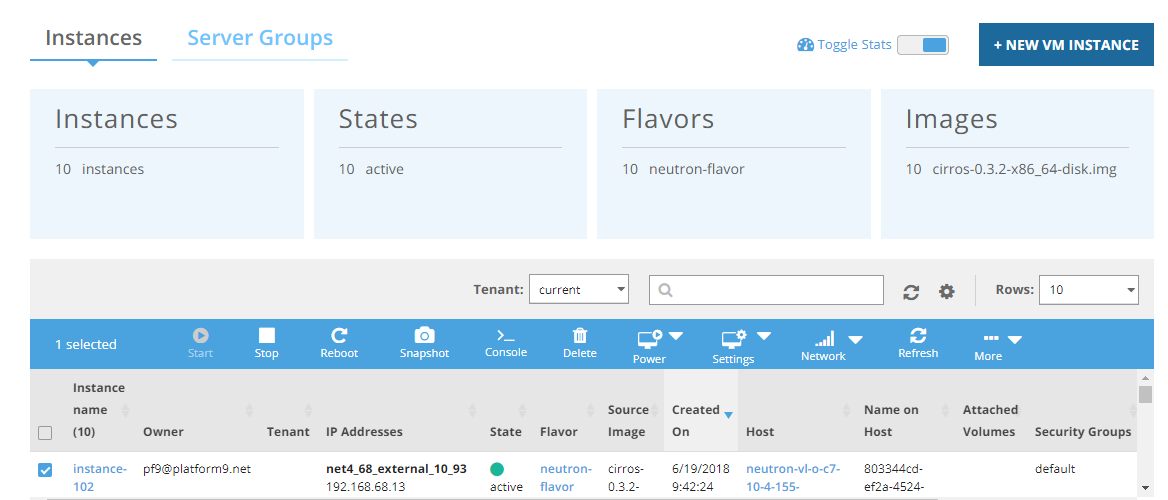
4. Click Stop.
5. Click Confirm.
The selected instance stops. The instance and the applications on the instance are no longer available for use.
Was this page helpful?