Problem
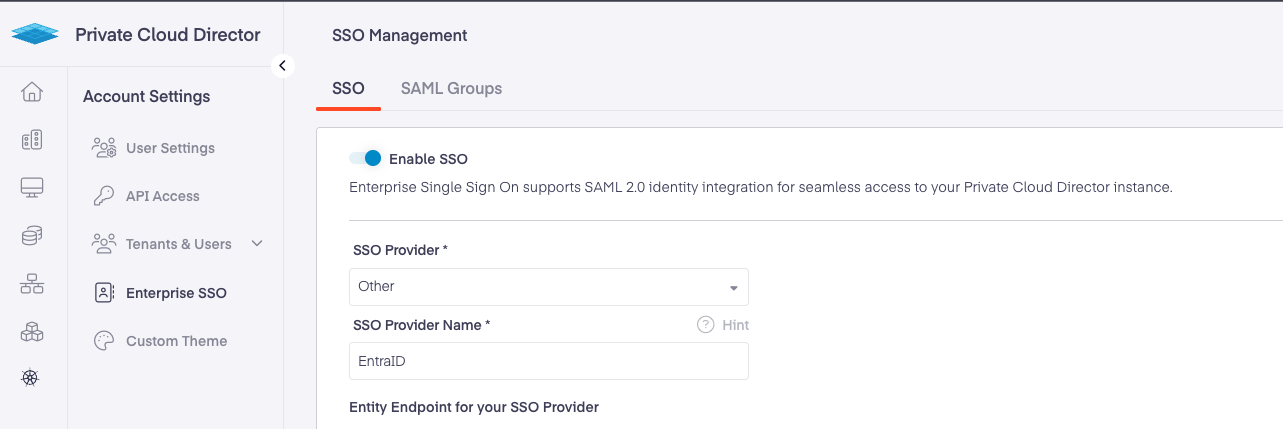
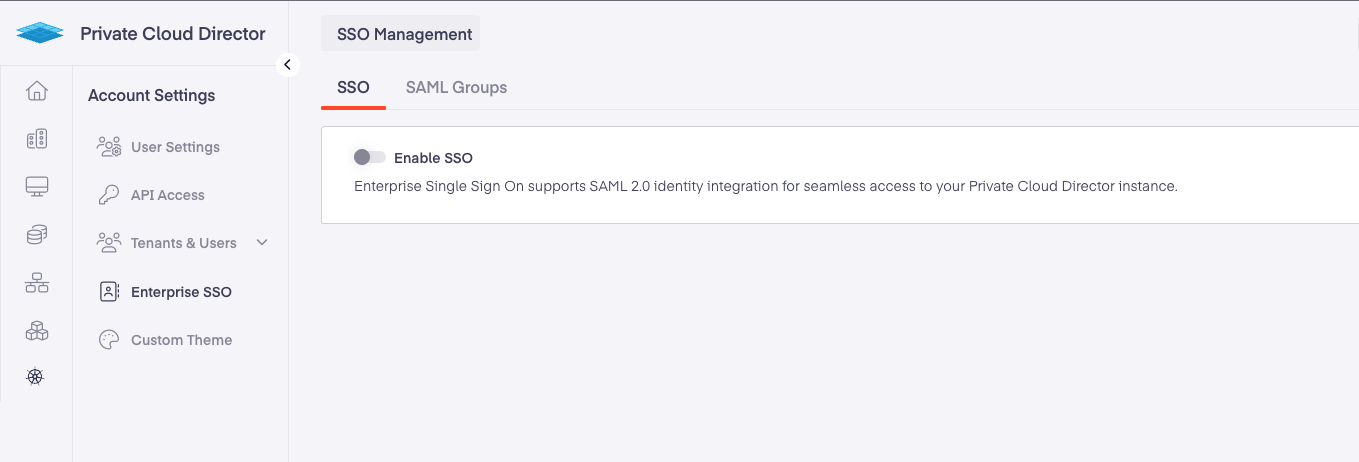
SSO appears disabled in the UI after upgrading the PCD management plane, but the backend SSO configuration is functioning correctly.
Environment
Private Cloud Director - v2025.4 and v2025.6
Self-Hosted Private Cloud Director - v2025.4 and v2025.6
SSO
Cause
The issue happened due to a bug (PCD-2029). After upgrading from the FEB release to the APR release, the "Enable SSO" flag appears disabled in the Enterprise SSO UI section, even though SSO is actually configured and functional (e.g., SAML group details are visible).
The issue occurs because the signing attribute is not included when creating the SSO config, and fetching it later from Consul fails. As a result, the UI treats the SSO setup as incomplete and displays the "Enable SSO" flag as disabled. The bug is now fixed with v2025.7 release.
Diagnostics
After upgrading the PCD management plane, navigate to Settings > Enterprise SSO in the user interface. The SSO feature will be disabled following the upgrade.
Workaround
For PCD (SaaS), the platform9 support team will apply the steps below. Please open a Support Ticket.
For Self-Hosted PCD (air-gapped), perform the steps below from the management plane cluster.
Install consul CLI, refer this documentation.
Get
hagriddeployment configuration.
Search inside the
hagrid-deployment.yamlfile for below variables.CONSUL_HTTP_ADDRCONSUL_HTTP_TOKENCUSTMOR_ID
Export values into current shell session.
Once the environment is configured, run the following command to store the signing flag.
Validation
Navigate to Settings > Enterprise SSO in the user interface. The SSO feature will be enabled.